Import
In case of Import feature, both a single test case and multiple test cases can be imported. The Import feature simplifies the process of adding test cases into the system. It allows users to upload multiple test cases at once using a .zip file. The user selects the file using the Choose File option and starts the process by clicking the Upload button. The View Import History option helps track previous imports, making this feature efficient for managing a large number of test cases.
Why it matters / Use Cases:
- Provides Clear Import Progress Tracking: The step-based flow (Upload, Analyzing, Review, Complete) helps users understand the current status of the import process.
- Enables Audit and Traceability: Access to Import History allows teams to review previously imported files and their details.
- Easy Backup and Restore: Allows users to save the current data before importing and restore it if needed, ensuring no loss of test cases or project information during the import process.
Prerequisites
- Access to ZeuZ Server with permissions for Testing → Test Case → Import.
- A previously exported
.zipfile or a.zipfile prepared according to the required specification format.
Quick-Start
- Select the supported .zip file containing the test cases.
Features
Import test cases
-
First, upload the
.zipfile.noteIf the
.zipfile is not available, then the test cases must be exported first.
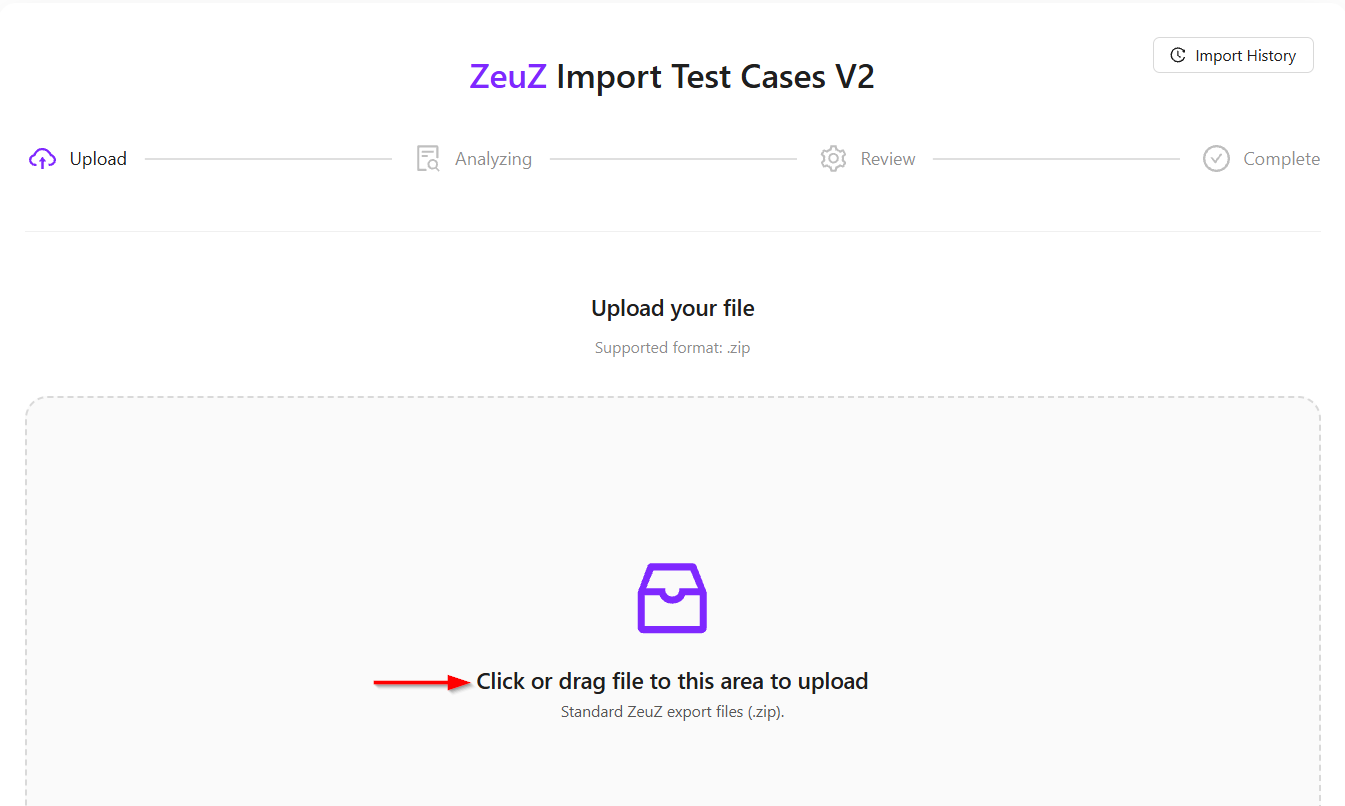
- After uploading the file, the system will start analyzing it.
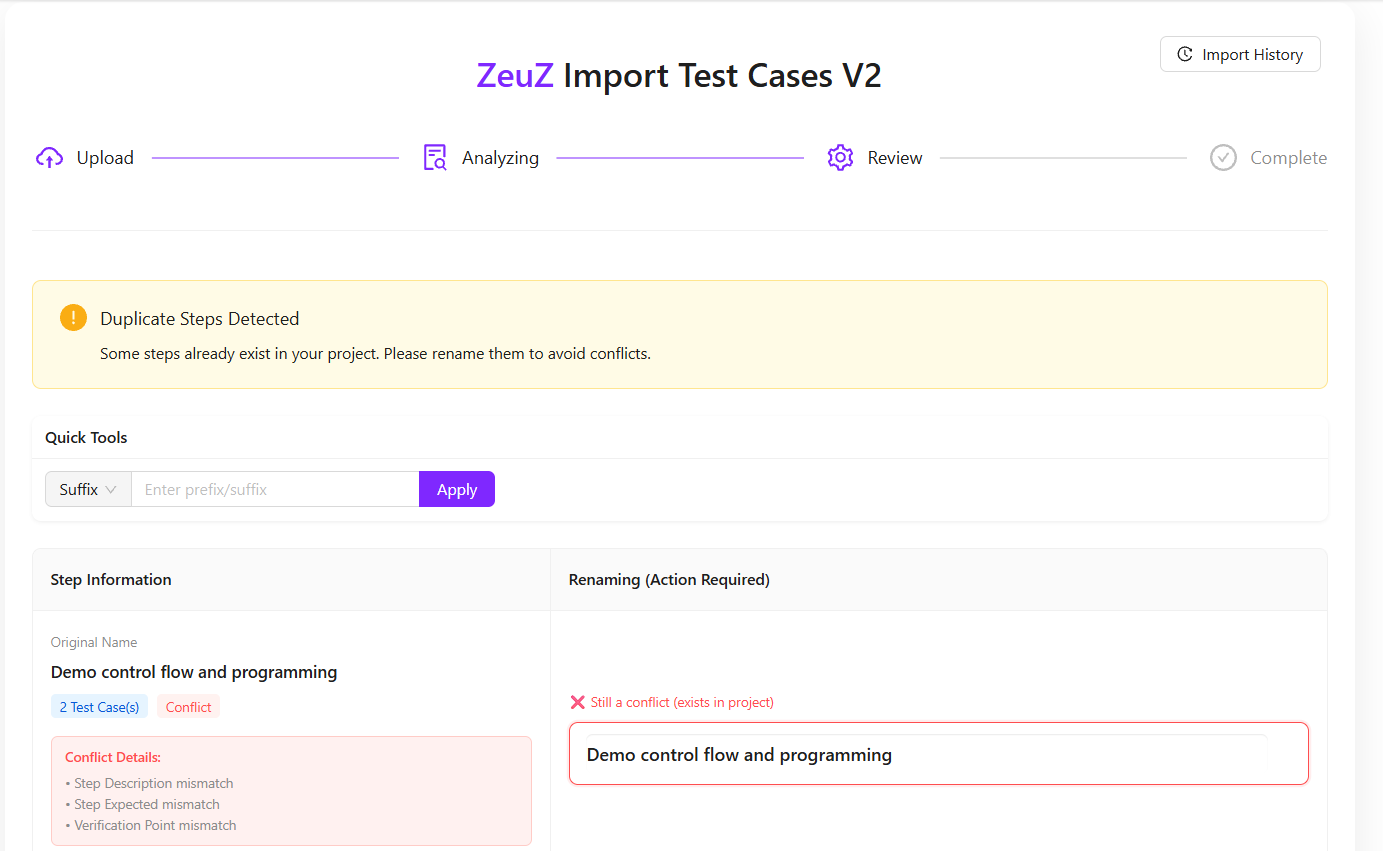
- If any duplicates are found, the system will prompt the user for feedback on the action to take.
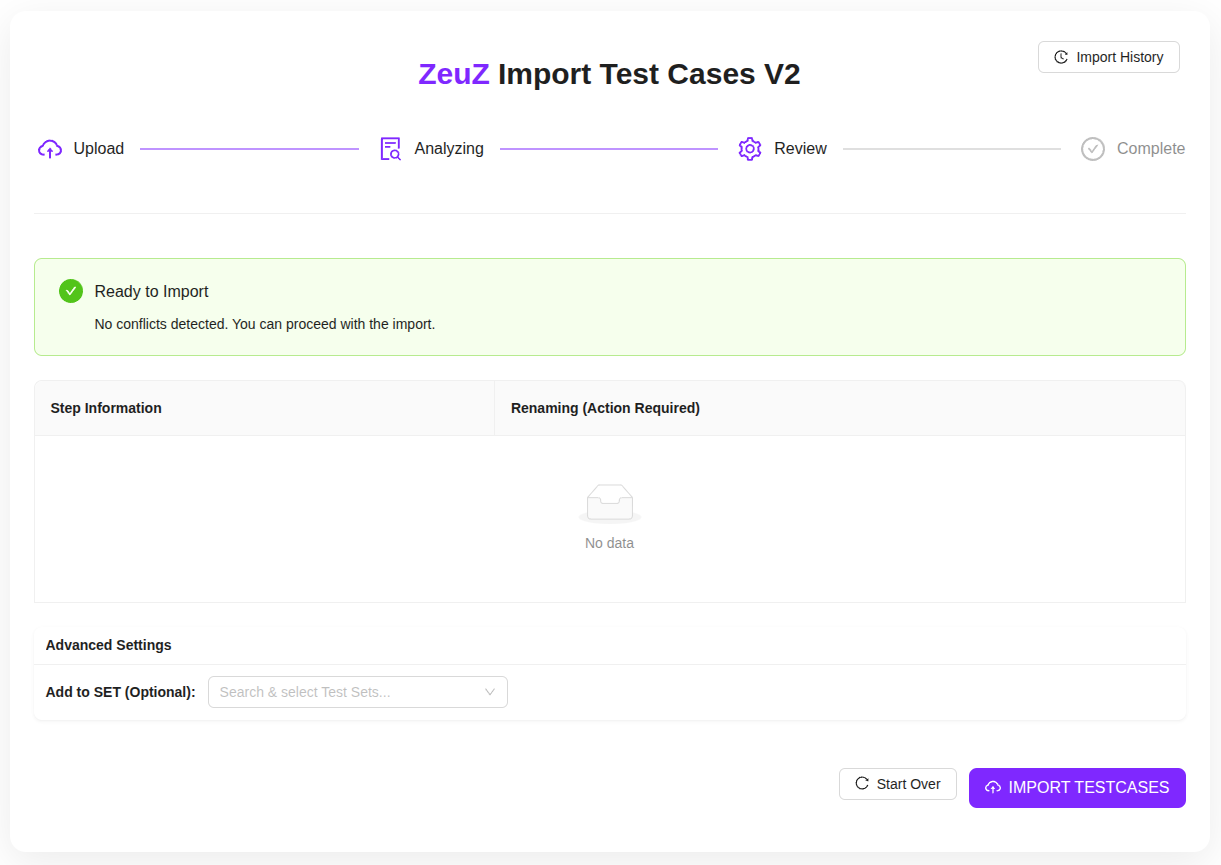
- If no duplicates are found, the system will import automatically and complete the process.
Import History
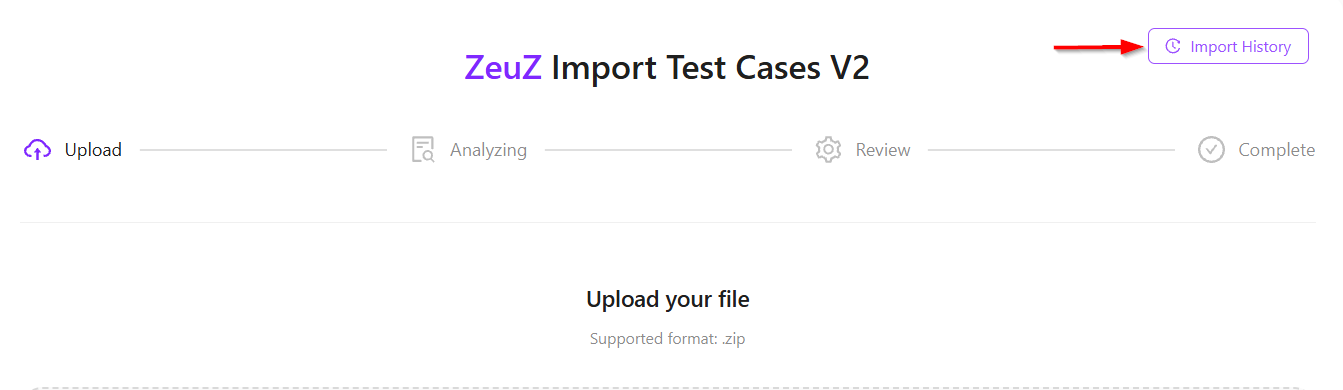
- Click the Import History button.
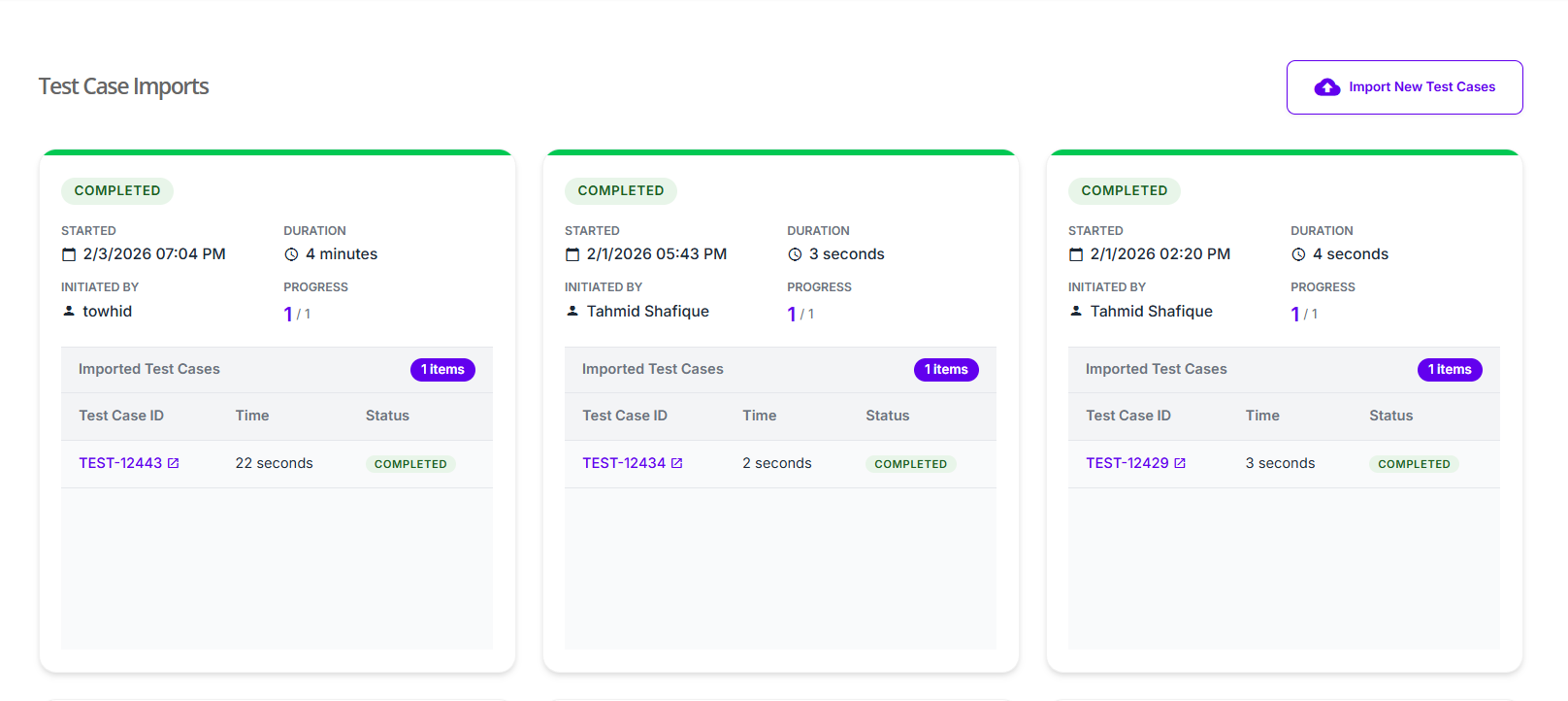
- After clicking the Import History button, the Test Case Imports page appears and displays the following information:
- The Test Case Imports page displays a complete history of all test case import activities performed in the system.
- Each card represents a single import operation and clearly shows its current Status, such as Completed which indicates that the test case import process finished successfully and all items were processed. while Stopped indicates that the import process was interrupted or manually stopped before completion..
- The Started field indicates the exact date and time when the import process began.
- The Duration field shows how long the import took to complete, helping users understand system performance.
- The Initiated By field identifies the user who started the import, ensuring accountability and traceability.
- The Progress field shows the number of successfully imported test cases out of the total in the uploaded file, for example, 1 / 1 indicates that the test case were imported successfully.
- The Click to view details option allows users to open a detailed view of the import to review logs or outcomes.
- The Import New Test Cases button enables users to start a new import process by uploading a file.
FAQs / Troubleshooting
FAQs
What file formats are supported for import?
Only properly structured .zip files containing test cases in the supported format can be imported.
Can I import multiple test cases at once?
Yes, the import feature allows uploading multiple test cases in a single .zip file.
Is there a way to track import history?
ZeuZ provides a Import History option to monitor previous imports and their status.
Troubleshooting
- Import fails or shows an error: Check that the
.zipfile is correctly structured and meets the required format. - Test cases missing after import: Ensure that all files within the
.zipare valid. - Import takes too long: Large files may take longer; splitting test cases into smaller
.zipfiles can improve performance.
Changelog
- New UI has been introduced [202512]